
 Posts
Posts


In fact, if you just want to use the external monitor instead of the built in screen, you simply connect it to the VGA port and cycle through Fn F3 to get just the built in screen, both the monitors or just the external monitor. It will automatically goes to the maximum resolution of the external monitor by default if you have not made any manual adjustment earlier.
If you want to check what resolution the display adaptor can support, you can do the following.
1. Right click on the desktop and click on Properties.
2. On the Display Properties dialog box, select the Settings tab.

3. Click on monitor 1 if it is not selected.

4. Click the Advanced button.
5. The display card General Properties appear, click on the Monitor tab.

6. Uncheck the box - Hide modes that this monitor cannot display - and click Apply.

7. You can now see all the resolutions that are supported by the graphics adaptor.
There is another good use of the external monitor and that is to extend the existing desktop. Here's how to do it.
1. Open Display Properties dialog box.

2. Click on monitor 2 (the external monitor). It turns blue.
3. Check the box - Extend my Window desktop onto this monitor and click Apply.

4. A blank background of your existing desktop will now appear in the external monitor.
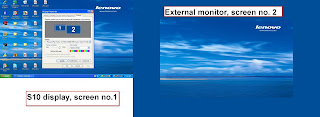
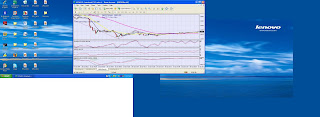
The two displays forms one extended desktop and you can move from one to the other by moving your mouse pointer across the screens, it is so magical. Now you can watch President elect Obama's historic inauguration on one screen and the Forex market epic battle in another screen and not miss a single beat or a single pip.
Just in case you run into trouble after making all the adjustment, there is one safety net.
Now you can make changes to the Display Settings (the resolutions) to what you might not be able to do in the normal Display Properties. You can also make color corrections if so desired.
I must stop now to watch President Obama's big day on the big screen.

4. A blank background of your existing desktop will now appear in the external monitor.

5. Adjust the screen resolution as necessary.
6. You can now open any window and drag it across your screen into the external monitor. (You can only do this for those windows that can be dragged i.e. those that are not maximised. Once the windows is in the external monitor, you can resize and position it as required or you can maximise it and it will fill the external screen.

The two displays forms one extended desktop and you can move from one to the other by moving your mouse pointer across the screens, it is so magical. Now you can watch President elect Obama's historic inauguration on one screen and the Forex market epic battle in another screen and not miss a single beat or a single pip.
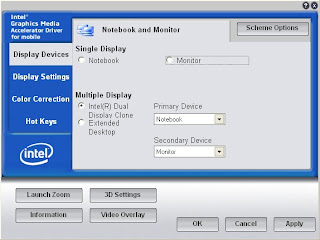
Just in case you run into trouble after making all the adjustment, there is one safety net.
1. Right click on desktop and click on Graphics Properties....The following appears. (This is for both screens active, if only one is active, either Notebook or Monitor only will be shown.)

Now you can make changes to the Display Settings (the resolutions) to what you might not be able to do in the normal Display Properties. You can also make color corrections if so desired.
I must stop now to watch President Obama's big day on the big screen.
Ronald Kwok


