This is a continuation of my affair with my wife's Lenovo S10. Yesterday I tested the videocam using Skype and it worked the first time. However I found the video image grainy and laggy when compared to my son's Macbook (the other end of my Skype testing. Come on, how much did that cost?) The image was also very dark but this improved when I did some Brightness adjustment at the Skype screen, Tools, Options, Video Image. The same goes for the mic that was a bit soft and by setting the mic volume to high at the Audio Setting, it became louder. The important thing is that it works and the next step is to do some tweaking to get it to be at its optimal. To get more out of the webcam, you can download this free software from Yawcam.
There are a number of undocumented quirks and finds about the S10 that I have culled from the Lenovo Forums mentioned in my last post.
1. Low audio volume. Double click on the speaker icon on the system tray to open the volume control. Set the Master Volume to maximum and also set the rest of the volume for wave, SW synth, etc to the level of your liking.
2. Annoyed by the beep that wakes up the whole neighbourhood whenever you plug or unplug the mains/AC? While you're at the audio setting above, set the PC Beep to Mute to shut out that blasted Beep.
3. There's a manual button that switches on and off the Wireless devices (WiFi and Bluetooth together), next to the One Key Recovery button. Once this is switched on, you can control the WiFi and the Bluetooth individually using the Fn F5 key. The wireless LED on the front will be blue if the WiFi is turned on or will be purple (red and blue) when the Bluetooth is on. If both are turned on, it will show the two colours alternately. To save battery power, turn off the Bluebooth if you are not using any such devices.
4. To get into hibernate mode quickly. Click to the Turn Off Computer screen where you'll see the Standby, Turn Off and Restart buttons. Place your pointer over the Standby button and a window will says "To hibernate instead, hold down the Shift key." There you have it.
5. You must have experienced it when using the touch pad on a web page, the page zoomed in to a very tiny blob or zoomed out to huge letters. That's the pinch zoom gesture of the touch pad that is inadvertently applied. The easiest way to get out of this is to go to the magnifying glass (zoom) icon at the bottom right corner above the system tray and manually select 100% or whatever level that you want. You can try to "un-pinch" the effect but it's not always a sure thing. You'll find it easier to use one figure each from both hands to zoom pinch but you'll never get the right level. You can visit the Synaptics site to see more of the gestures for the touch pad but not all of them are available on the S10.
A much better description of all the touch pad functions and configurations can be found on the S10 itself.
1. Right or left click on the touch pad icon in the system tray.
2. Click on the Pointing Device Properties and a new "Mouse Properties" window will appear. 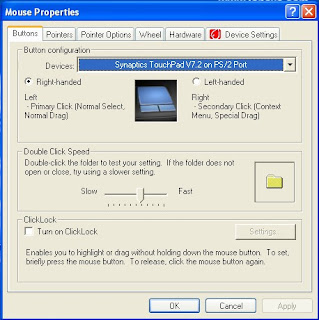 3. This refers to all the settings and functions of the touch pad that you can customise.
4. The best part is to select the Device Settings tab and then click on the Settings button. You'll get the whole user manual of the touch pad here.
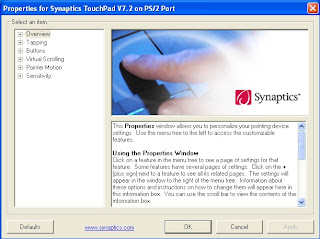
It's a pity that the touch pad is so small that using all the available functions can be a bit difficult especially for those with big fingers. Well, at least they are there.
Ronald Kwok
http://cbpirate.com/s/cbp/ronaldkwok 
My affair with the Lenovo S10 is now into the third week and I have nothing to complain so far. Meanwhile, I've been following the posts in the independent Lenovo Ideapad S series Forum which focus on the S10. This is a good Forum if you want to learn more about the S10. There is another Forum, Lenovo Forum for the Ideapad , that is run by Lenovo where the S10 belongs but since this covers all the Ideapad models and not just the S10, it is less focused but you can also find some additional information about the S10 if you do some searching.
There are some complaints raised in the former Forum so you may want to check out these areas and test your unit if you intend to buy the S10 to see if any of these is a problem for you. Here's the summary.
1. The fan noise. Some find the fan noisy and disturbing but to me it is OK so this is very much a personal thing. The fan in my desktop is definitely more noisy! However, I tend to notice the fan noise more on the Lenovo S10 than on my Dell Inspiron laptop so it is not the quietest one out there.
2. Keyboard. The arrangement is not the best and one must bear in mind the limited space that is available to fit in the keyboard. You have to sacrifice something if you want portability. The size of your hands (and fingers) will determine if you're comfortable typing for long periods. Once you're used to the arrangement, you can touch type quite normally. Do test out each key individually to see if any is defective. Also test the Function key combinations to see if they work as intended.
3. Touch pad. Again small because of the space limitations and need some time to get used to it. The click buttons are rather stiff and need some force before they are activated. Do test out both the left and right buttons since there were some reported cases of defective buttons.
4. Battery. There are many posts on the 6 cell battery not charging properly and low capacity compared to what is advertised but these generally refer to the 3rd party replacement battery. If you buy the S10 currently (in Malaysia, at least) you should definitely get the one that comes with the original 6 cell battery so you should not have any problem. Some of the problem arose because the user insert or remove the battery while the set is still plugged into AC power. Not sure if the original will suffer the same fate so never, never inset or remove your battery while you S10 is till plugged into AC power. This is really common sense since we were always taught to power off before we meddle with any electrical items.
5. The Lenovo logo on the cover. Some found the letters dropping out, especially the letter "e". Not a major issue but may be of concern to ladies who must have the perfect look!
So it seems Lenovo need to tighten their quality control but there may be similar complains about the other netbooks and certainly, the Lenovo S10 is not the worst. It is one of the easiest netbook to upgrade the RAM or the HDD, if not the easiest. It serves its purpose well as an ultra portable laptop for Internet usage and minor office task.
If you did not get a S10 as a Christmas gift, there's still hope yet; you may still get one as a 2009 New Year's gift. Just drop some hints to your girlfriend or boyfriend or simply refer them to this post! Happy New Year!
Ronald Kwok
http://ronaldkwok.atomicblog.hop.clickbank.net/

 Posts
Posts


